Axis & Allies .org Forums
    • Home
    • Categories
    • Recent
    • Popular
    • Users
    • Register
    • Login
    1. Home
    2. Black_Elk
    3. Posts
    0%
    • Profile
    • Following 0
    • Followers 5
    • Topics 100
    • Posts 2,096
    • Best 184
    • Controversial 0
    • Groups 6

    Posts made by Black_Elk

    • RE: How to change color of seazones?

      Ok so what I did here was to take the above and just reduce the Opacity of the relief by a little bit so from 99% down to 81%. Then I used the darker baseline for the baseTiles to get something similar going.

      Looked like this…

      darkexample.png

      darkexamplezoomout.png

      Had the lines holding down to 18% zoom out and the convoy and sz numbers sorta just visible enough for me at the normal playscale (around 50-70% map zoom probably for most). Not sure if that seems good for you? You could make lighter blue by making the baseTiles lighter, I just tried to go as dark as I could to see what sort of line color might be needed for the sz boundaries that way. You can change the hue to whatever, it was more trying to match the color value (brightness/darkness) for the lines. For the pattern on land easiest way is to just remove that stuff and have tripleA paint a solid color across the tile. This would basically look like the map with map details turned off, except you’d have some border fades just to have the lines holding.

      For the HEX colors on land, you can adjust those in the map.properties for something less vibrant. Wasn’t sure what you wanted there.

      Here are the baseTiles, reliefTiles and smallMap for the UHD to match the darker ocean colors there. Basically you just swap those into your UHD Global 1940 downloaded maps and should see something that looks like the above, with the mini map and such working. The value change was pretty subtle, but it reduced the line dance and made the sz and convoy graphics pop just a little harder against the dark blue. Let me know if that works for ya. If it seems ballpark we can riff off that till you got what you’re after.

      Catch ya next round dude

      posted in TripleA Support
      Black_ElkB
      Black_Elk
    • RE: How to change color of seazones?

      No worries! I went through all this trying to figure out how it works too. It’s just not a particularly easy thing to get the head around.

      That’s a wild image! I can tell what’s going on though, what happened was that you placed the dark blue reliefTiles I made you for the regular World War II Global map, but must have placed em in the UHD World War II Global maps folder.

      Those are different maps with different baselines (different dimensions for the map and different polgyon shapes in the UHD compared to the regular one by Bung). The reliefTiles folder is purely cosmetic and paints on top of the baseTiles. In this case you’re seeing the what it looks like when they’re mismatched hehe.

      To use the UHD Global with a similar visual vibe, I’d need to make you some reliefTiles for that one. Here let me do that real quickly just so you can check it out.

      Ok here, do the same thing you did before, except this time use these reliefTiles for the UHD. I have them already broken into the tiles, so you’d just need to swap the reliefTiles folder there in the UHD map.

      https://drive.google.com/file/d/1YEpjVNHicIl3k-NGiSSkOvaWVpzY2RRP/view?usp=sharing

      Should give you something that looks like this…

      darkviewUHDzoom.png

      Then you can adjust the National HEX colors to match the darker vibe for the land territory paintjob.

      Here is the same relief a reconstructed large image, in case you want to modify it. I might have gone a bit dark for your taste.

      https://drive.google.com/file/d/1hphEfxTPstUBgdKYqXLXk88yJPRONhhK/view?usp=sharing

      All the colors key off each other, since our perception of color is always relative to the other colors nearby, so the HEX colors for the land paintjob may appear quite different depending on which blue you use for the ocean. Tricky part is usually just finding a color for the border blue that will hold to max zoom out, without too much dancing or the lines disappearing when it scales out to the max.

      Going very dark you’ll lose a fair bit of contrast in the mids. What I would do probably is switch the label graphics for the sz zone numbers or convoy graphics to be brighter maybe. Or alternatively you could just play around with the blues till you got one you like.

      To carry the color over into the minimap, the image file to adjust is the one called smallMap. It’s basically just a color swatch with a little ice at the top for the unassigned arctic tiles.

      You can fine tune it if you want, I usually do this by bringing the baseline and the relief into GIMP, then using the baseline to make selections on the relief by using the color select tool and then switching between layers once the selection is made. Then you can control only the stuff that’s happening in the sea zone tiles, while ignoring the stuff on land. Another thing I might try is to expand just the fade around the continent contours, so it will match the thickness of the sea zone boundaries. So you’ll notice the lighter blue line appears thicker in the ocean, because it’s painting light blue on both sides of a black 1px zone boundaries, whereas the transition from land to sea only paints that blue on one side of the line. Has the effect of making the contour lines for the continents appear thinner when zoomed out. Anyway I can show you how to do that or change the border effect once you know what sort of blue you want, then switch those labels to key off it slightly lighter rather than darker for the sz numbers and such.

      ps. the unit graphics for the UHD and regular global are interchangeable, so you can swap them out for either game and should work. The place on the 54px scale units will be a little different if used on the smaller map, they’ll crowd, but you can use the regular 48px unit in the UHD map, upscaled at 125% in the unit view in tripleA 2.6 they will appear somewhat smaller but still works. I haven’t made the rail pattern for it yet, just has the topo, but one could do a different fill if trying to get a different sort of look going. The revised board had a pretty simple pattern for the land TTs, like just a couple graphic design elements, the color fields there were sorta just a uniform color painting over the ground tiles. To achieve something similar you could just collapse the topo completely and have the colors instead pass through like a 50% mat gray at half opacity or something. Then use whatever units you prefer for it.

      If you can get a UHD relief to work for you, I can show you a simpler way to control the blues. Basically it’d work by changing the blue in the baseTiles color so the baseTiles undercolor will show through. Right now it’s quite bright in the basetiles for the default, so I just covered them over completely with the example relief, but basically you could control how light of a blue you want the color pop to be around the sz borders in a few different ways by changing the baseline color which is a single color edit, but you have to use a program like Photoshop GIMP or Paint etc. It’s more just finding the right blue for what you’re after and then kinda keying off those colors to get a more subtle line going in the Relief. Basically just so the 1px baseline doesn’t disappear against a dark background. Once you get something up and running it’s easier to tool around and see how the edits will visualize when you change the colors around.

      I could just make the ocean stuff in the relief more transparent. Currently it’s at full opacity now for the ocean area. Once you know how to run the image tile breaker map creator tool for the reliefTiles and baseTiles it’s easier to switch stuff around I can just send you a base with darker blue and a relief to match that blue and should be simpler to edit.

      posted in TripleA Support
      Black_ElkB
      Black_Elk
    • RE: How to change color of seazones?

      @DessertFox599

      Not sure on that one, I haven’t used the tripleA mapskins feature in some time. Like I’m pretty sure the last time I had one of those skins working was about 5 years ago or more. It’s possible there’s some conflict there with the files you’re trying to update, if it’s not the vanilla download of World War II Global but one that has already been modified via a skin. I’ve been using the 2.6 pre-release rather than the 2.5 stable for what seems like a small eternity now hehe.

      When I go to grab the mapskin that I think you might be referring to in tripleA 2.6 it won’t display in-game from the launch dropdown cause it doesn’t have the YAML file I think. Still shows up in my downloaded maps folder, but I can’t get at in 2.6.

      I’m not a developer for tripleA, just a some sort of map customizer superuser I suppose, so someone else might be able to help you troubleshoot for older versions. In 2.6 some stuff was changed with how maps are parsed. Like the newer map downloads folder needs that YAML file and some other stuff to properly extract and unzip the material, which 2.6 does automatically now upon downloading a map with “download maps” launch button.

      I would suggest modifying the stuff in your downloaded maps World War II Global folder directly, rather than via a skin, as that must be where the hangup is?

      If I remember correctly, 2.5 would run the downloaded.maps as zipped up and you’d have to manually extract the folders to make changes, but I think 2.6 should automatically extract the mapfolders once downloaded now, so that you can modify what’s inside the map folders without going through that step. I’m guessing you got TripleA 2.5 up? It’s possible that there are some differences there, like where that mapskin just hasn’t been updated perhaps.

      I recall hearing something along those lines a while back, about issues with mapskin compatibility. Or perhaps you have more than one map of the same name or something like that. Initially I think the mapskins feature was meant to make it more convenient to mod tripleA games with a 1 click swap, but there where only ever a few mapskins created that way. They must have gone a different direction with it, support for that feature might not have made the cut? So far as I know the only Mapskin for Global was that one that made it look like A Battle Map for the display, back in like 2014 I think? If that is the skin you are using, I see it has several adjustments made to the map.props and possibly the polys/tiles themselves, which would make it not cross compatible. I’m not sure how to mod material within the skins anymore.

      Anyway, I would just go with the vanilla Global game or the UHD upscale for Global if you want to tinker around. 2.6 also has many features which 2.5 doesn’t have such as map scaling to 200% and the like. I can show you how to create a relief with those colors, or a similar visual in the relief, but it would be modding those files manually rather than whatever is in the skin. For example, the color coding for that A Battle Map skin in the map.properties reads…

      color.Neutral=B7997C
      color.Neutral_True=B7997C
      color.Neutral_Axis=B7997C
      color.Neutral_Allies=B7997C
      color.Italians=93936E
      color.British=8E7B1C
      color.UK_Europe=8E7B1C
      color.UK_Pacific=8E7B1C
      color.French=1E6BAA
      color.Impassable=B7997C
      color.Americans=506400
      color.Russians=A83F25
      color.Germans=536342
      color.Japanese=CC5F00
      color.Chinese=B5A715
      color.ANZAC=8E641B
      color.Dutch=5C4FAD
      color.Mongolians=B7997C

      In the vanilla map it reads like this… So you can just substitute the above in your own map.properties to ballpark it…

      color.Neutral=d8ba7c
      color.Neutral_True=b88a6c
      color.Neutral_Axis=6A5B3D
      color.Neutral_Allies=d8ba7c
      color.Italians=58360E
      color.British=8E6600
      color.UK_Europe=8E6600
      color.UK_Pacific=8E6600
      color.French=10569C
      color.Impassable=e7d5b0
      color.Americans=026400
      color.Russians=940000
      color.Germans=3f3f3f
      color.Japanese=e19521
      color.Chinese=533c69
      color.Canada=bf0010
      color.ANZAC=4d7f7f
      color.Dutch=ff6d00
      color.Mongolians=d8ba7c

      That mapskin looks like it also uses a pretty different opacity for the reliefTiles, which will change the actual display of the colors being passed through it, so the colors listed above will look different on Bung’s map than they would on that Skin (different reliefTiles).

      Anyway, I would just ditch the global mapskin from your downloaded maps folder and redownload the reg Global folder (stow the skin files somewhere else for safekeeping, you can always refer to it if trying to recreate a similar look for your modded version). When you run the regular map sans skin, you should be able to modify the stuff in the normal way by just replacing files or folders manually, for just the things you want changed. Instead of the whole package at once, which was the mapskin approach. They were maybe unbundled at some point it looks like. Probably cause skins end up being quite large, like heavy in the filesize. Depends what all you’re trying to do. Like if it’s just changing the ocean color in the relief that’s pretty light footprint, but if it also changes the txt files baseTiles and reliefTiles and unit graphics etc it gets more involved. I think it’s probably easier to tell what’s going on the step by step way, so you can see how each individual change is tweaking it, rather than the big overhaul at a go.

      Hope that helps!

      ps. Oh also, for anything that’s in your mapskin and already working, you should be able recreate all that stuff directly in the regular folder. The difference will just be in how it’s applied. So rather than a dropdown ‘switch to a different look’ type feature within a single map (which was I guess the original idea of a convenient map skin, to switch on the fly), basically that’s just how global will look for you by default when you launch it locally. Some files are more essential than others, the Polygons.txt is a big one, since that defines how TripleA is actually drawing the baseline in-game. Changes in that file would need to match what’s going more generally, otherwise it’s basically a different map and you might have issues say joining a game with another opponent using the regular map, unless they have the same file tweaks and such applied. Mapskins I think would get around this by translating the information in those more core files, but essentially all we want to do is get whatever standard to run with an updated cosmetic relief. You can change most things to whatever like substituting unit or label graphics or the colors of the land TTs painted over, but the Polys and the basic structure of the folders within the game folder those need to be on the same page, or it won’t load. It’s probably something simple like is mapskin in the props that tells tripleA what to do for skins, but I can’t recall. Since the mapskin seems to be the issue here, I’d start with seeing if you can get the regular version up to just replace what’s in the reliefTiles folder. If that works then you know you’re playing with a version of the map you can modify and make changes to. Then you can compare the material in that regular folder with what’s inside the other mapskin folder, and see which things you want to include for adjustments. Probably the easiest way to go I think

      posted in TripleA Support
      Black_ElkB
      Black_Elk
    • RE: How to change color of seazones?

      @DessertFox599 to run the map creator tool > run image Tile breaker you shouldn’t need the polys for that.

      What might be the issue is that you need to navigate to the downloaded map folder to point the Tool to the right spot, when prompted for the folder called “reliefTiles” in whatever map you’re using. The default will point you to main tripleA directory (where maps used to live in the old days) but the maps are now stored locally in the downloaded maps folder.

      For me its in Users > name > tripleA > downloaded maps > world war II global > map > reliefTiles

      Basically they’re kept in the same place where you’d browse to find your local savegames, but clicking into downloaded maps instead of savegames.

      If you are trying to reconstruct the single relief from the tiles already broken up in the folder (the reverse process) you will be asked if you want to draw the Polygons into the image for the last prompt. I usually click No/cancel to that, since it will paint the polys on top instead of showing through from the baseline under image, but shouldn’t really matter for this one cause the border effects are pretty simple.

      If you have the reliefTiles ready to go somewhere, you can just replace the folder directly instead of using the Map Tools (this is how maps skins would work, but this is like the manual process). Here they are already broken into tiles, so you can just extract the zip and replace that folder which should be simpler. Once you know where to navigate the browser it’s pretty quick to run the Tile Breaker again if you want to modify the single image and then break the tiles again to see the changes, like if you want to go darker blue or lighter blue or whatever.

      https://drive.google.com/file/d/1UsQs5V_TAIMpyPWYBGHFxrWwojjQZmu9/view?usp=sharing

      Let me know if that did the trick for ya

      posted in TripleA Support
      Black_ElkB
      Black_Elk
    • RE: How to change color of seazones?

      If you’re using the world war II global, navigate to your downloaded maps folder and locate the file called map.properties

      When you open this file with a text editor like notepad, you’ll see each player-nation listed with a six digit color code (HEX) and also the map dimensions. For that it should say

      map.width=7705
      map.height=3213

      From the tripleA main menu go to

      Map Creator Tools > Other Optional Things > Run Image Tile Reconstructor and enter the width/height to get the relief as a single image. Usually the relief is a larger more detailed image. The image is already present in the reliefTiles folder but it’s broken up into 256px squares. This just reassembles that into a single image the same way tripleA does for the in-game display.

      Here is the full size default relief image already reconstructed…

      https://www.dropbox.com/scl/fi/ovomcz3m273htmmlow4yr/bung-relief-map.png?rlkey=itu23ksuv0h0kd7rgy9hmhx8i&dl=0

      I downscaled to display here, but looks like this in the default presentation.

      bung relief map.png

      You can see that in this particular map the ocean is painted directly onto the relief at 100% opacity with the cloud effect thing going on. We can either ditch it by eliminating just that portion of the relief, or we can modify or replace it. Easiest way to do either is to open the baseline map and use it make the selection. Basically we can bring both images into GIMP or Photoshop etc as separate layers and use the one to make selection for the other, by switching back and forth.

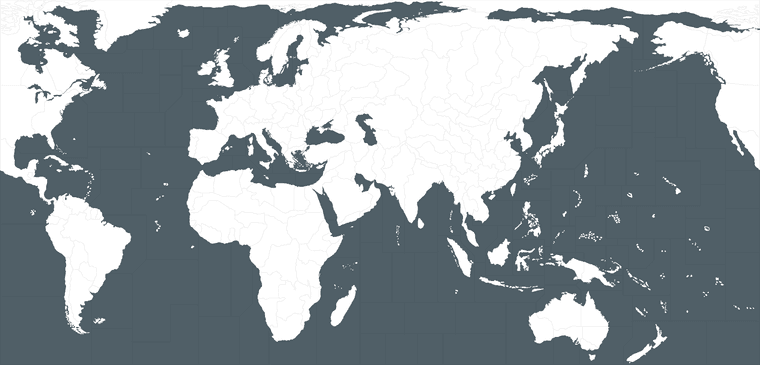
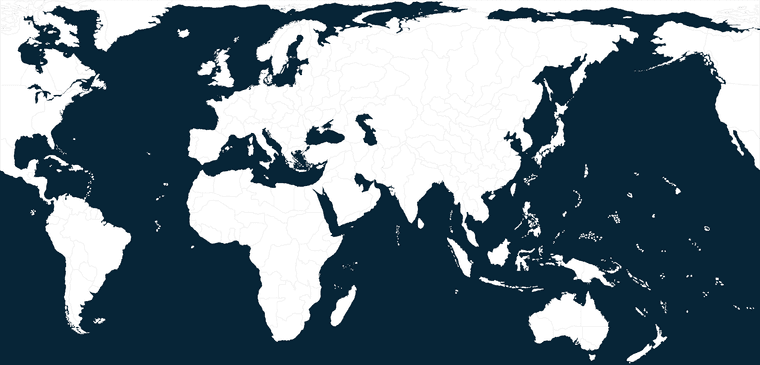
      The baseline image is much smaller, so sometimes that one will be present in the folder. In the standard global it’s labelled baseTiles.png. It looks like this… again downscaled to display here.

      baseTiles_reduced.png

      So basically we’d use a selection tool (color select) click the solid blue on the baseline, then when we switch over to the relief layer that same area will remain selected. You can just darken that portion if you want. Here’s an example, keeping the same clouds and whatnot just pushing the values darker.

      bung relief darker sz reduced.png

      If you run that image through the Map Creator Tools > Step 2 Run The Image Tilebreaker, you can replace the stuff in the reliefTiles folder with the new darker blue.

      For the National Colors, go back to the map.properties file and edit the HEX colors there to find colors that match the Revised vibe.

      Screenshot 2024-03-14 131551.png

      You can find the 6 digit HEX codes in whatever image editing program you’re using, or can you use a web palette like this to find the right HEX colors for each player.

      https://htmlcolorcodes.com/

      Easiest way is just to pick a color, copy the HEX code to the map.props for that nation and save the file. Then fire up tripleA to see how it’s painting over.

      The in-game display for those colors will get passed through the relief transparency which that dude made, so they may show slightly differently in-game than the HEX color swatches you’ll see on the website.

      With Bung’s relief the colors will become more muted/gray once they path through the pattern he used. But just need to the make the Brits more khaki or the Germans more blue-gray or things of that sort. When you just switch those HEX codes, it will change the painted colors.

      I would suggest also widening the sz border lines and using a lighter colored line for that, or maybe using the dotted line effect to capture the vibe. The default black lines won’t display very well otherwise just cause the ocean is now darker. You can use the baseline image to recreate border fx on the relief layer. Say instead of a 1px black line, you can use a more rounded and beefier light blue line or whatever makes sense.

      You can apply a little blur or antialiasing to soften the borders after they’re widened or do a dash instead, things like that. You can paint the border stuff directly into the relief, or remove a section of the relief to allow the ocean color from the baseline to show through at full opacity. Since the blue from the baseline was already much lighter than the darkened relief I just removed a couple pixels around the border edge to let that lighter color bleed in, just so you could still see the sz boundaries, esp when scaled out.

      Here’s some more random stuff that might be useful. It’s kinda long winded, cause I always have that issue, but basically a few screens down shows how to do the border grow thing with GIMP. https://forums.triplea-game.org/topic/3423/a-brief-guide-for-making-a-map-relief

      What I did for this one, was to create a little gap where the sea zone color from the baseline would show through. I think that should help to see the Sea Zone boundaries. It also will give a little color pop at the border edges. Let me know if that’s the sort of thing you were looking for.

      Here is the full size relief with those adjustments made…

      https://www.dropbox.com/scl/fi/6rmq9leh0tzuir8e9zrqm/bung-relief-darker-sz-borders-adjusted.png?rlkey=5rgbphkdyiiyyv4dz3u5gh8b4&dl=0

      You can see below how it displays with the default HEX colors and the sea zone bordering. I would probably adjust the convoy graphic for brightness, because it displays quite dark, but otherwise should work I think.

      Screenshot 2024-03-14 134405.png

      Hopefully that helps!

      ps. another similar approach, is to use the view tab “Blends.” This will blend the relief and the baseline image together, so by creating a baseline with a very dark blue you can bring that darker color into the final display. On land it will mix with 50% white (showing like the land color from the base) and all the HEX colors will become very light, like pastels. Here you can see the effect, the blue from the base now bleeds into the relief halfway. The color from the boundaries around the sz will present slight thinner, cause the contrast isn’t as high. But basically you can do it with a single color edit to the baseline image, run that through the breaker and use blends to get the darkness. HEX colors you can also go darker to compensate for the white that’s blending in. Default HEX and the stuff above gives something like this when blended.

      Screenshot 2024-03-14 155912.png

      You can see with the blend the blue is more vibrant and the national HEX colors are very light, so you’d probably want to adjust those to bring them a little closer to the unit tints if going blended, or maybe adjust the units themselves if they pop too hard. Depending how bright your screen is you might find a slightly darker/lighter shade of blue easier on the eyes. The unblended lines held to max zoom out for me, the blended ones had a little dance to em. You can change the highlight to be brighter if you wanted, but just to show how it could work.

      Screenshot 2024-03-14 164609.png

      posted in TripleA Support
      Black_ElkB
      Black_Elk
    • RE: TripleA 1914 download here

      Azimuth had a great idea to get the zoom to work, try this…

      I doubled the width of your base from 3200px to 6400px expanding the canvas only to the right. This allows the image to zoom quite a bit further in both directions in/out.

      This is the display in-game…

      At max zoom out you can see the entire diamond

      Screenshot 2024-03-12 004120.png

      At max zoom in (200%) you can get pretty close. Like right on top of it, so some hot fuzz there, but not too shabby.

      Screenshot 2024-03-12 004152.png

      When you run the base and relief through the tile breaker, just remember to also do the new width in the map.properties and to the minimap. For the minimap you can paint that image blue or do a little rescale. Just depends how wide you want the stats bar really.

      On the map view itself, you could place any graphic in the empty section, which only becomes visible at max zoom out anyway, but could be used for stuff like units charts or whatever to fill the space.

      Here’s the baseline and relief I used in case you want to experiment around

      preview of widened base
      baseline_world_war_1_1914_widezoom_reduced.png

      Base wide
      https://www.dropbox.com/scl/fi/i601bbxcohk1gn29r4h24/baseline_world_war_1_1914_widezoom.png?rlkey=z0s4zg35fh4p3nzz9g6ogrmum&dl=0

      Relief wide (simple borders)
      https://www.dropbox.com/scl/fi/mu9yslcuzyut3bc9c54bs/relief_simple_world_war_1_1914_widezoom.png?rlkey=9ocsrt9ht9rpct48gxtrds6ku&dl=0

      Hope that helps

      ps. fooling around with it again, I think if you just go 4:3 or 16:9 aspect when you extend the canvas of the baseline map image (just to the right or you’d have to redo the place and centers and such) you should be fine. Those images above are both at 2:1, but checking that out will also show you the dimensions of the little marquee on the mini. So you can adjust the aspect of the overall map that way, even if the main area of interest is off to the lefthand side. Just to get the zoom to work right. Pretty much everything else you can handle with the relief for whatever visual. When I think of WW1 I tend to picture a more period propaganda vibe or whatever with all the gilded embellishments, but 1914 in the design is sorta more like a fauvist riff on that I think, pretty modernist in it’s take, like to be all tilted on the side hehe. Even the color choice struck me that way, sorta different than I expected, but also made sense once I acquiesced to that. Like the world on it’s sidewise, seems apt. Anyhow, best I could figure for making a zoom work there. Seemed to do the trick

      posted in TripleA Support
      Black_ElkB
      Black_Elk
    • RE: TripleA 1914 download here

      @The_Good_Captain

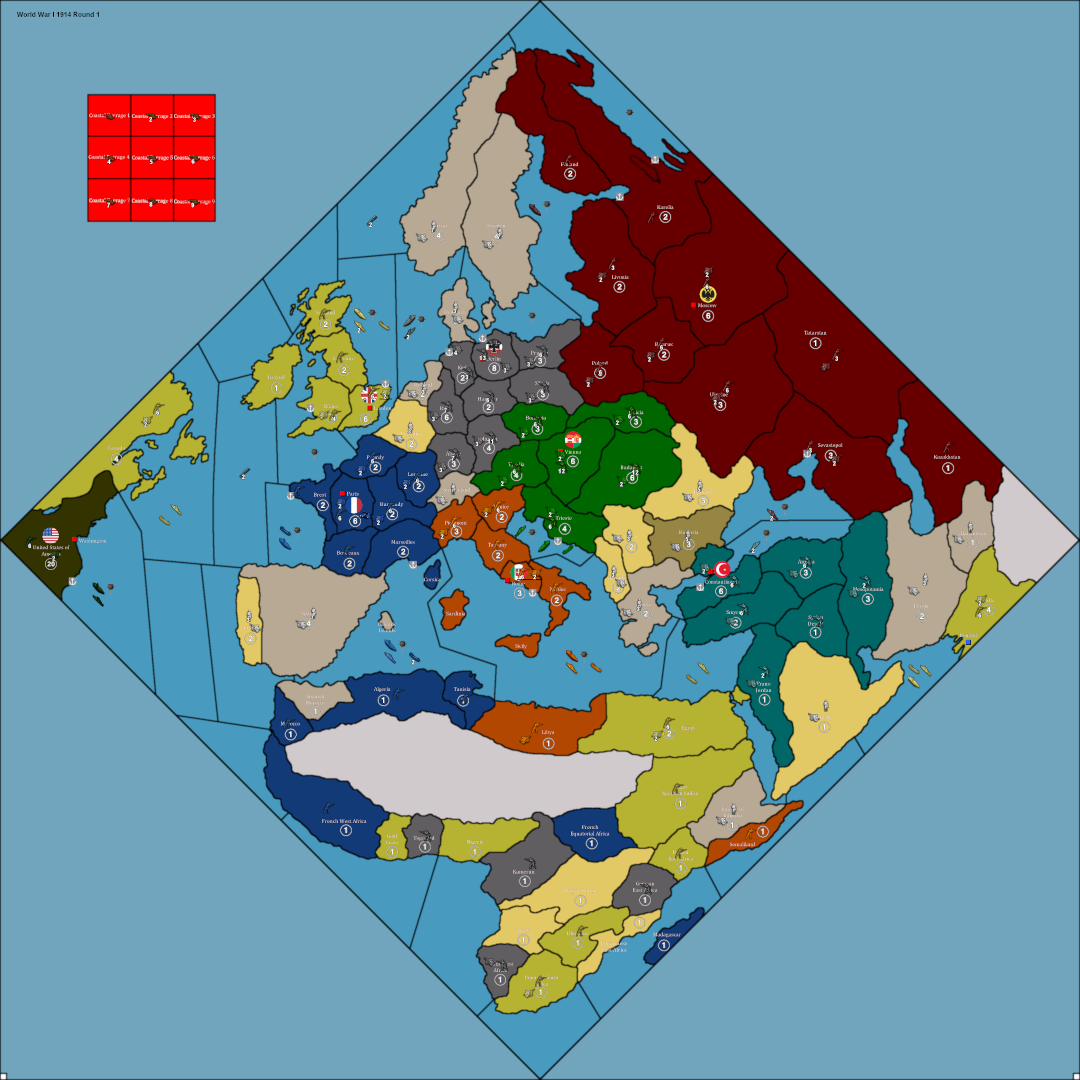
      I saw this one and threw together a very simple relief for it, just in case you wanted something to riff on. It has no underlayer, just the borderlines.

      Basically what I do is take the baseline image, select the black border and copy/paste onto a new transparency layer. Then I expand that selection by 1 px, fill with black. Expand the selection again by another 1 px and apply gaussian blur to the selection area. This creates a gradient or a fade for the border area (basically to soften it, so things look a bit better especially at 200% in triplea 2.6.) Once the fade is in place, I go back in an select/delete the original 1px blaxk from baseline so that part is empty in that relief layer. This allows the baseline to show through the relief, and to change from black to white when a tile is selected in-game to show the highlight effect. Looks like so…

      ww1 1914_reduced.png

      You can then create a pattern or topographical underlayer for the relief by choosing whatever pattern fill and then making that portion/layer of the image semi-transparent in the final relief. Like for whatever visual effects, drawn on graphics, labels and the like.

      Main challenge with the 1914 board is it’s diamond presentation. This is tricky when the map is scaling height to width, since it prioritizes the one dimension (I guess cause most maps are typically wider than they are tall, with 1914 being the exception to the general rule). What happens is that rather than zooming out all the way it will crop at about 45% zoom-out, basically cause the image is a square. Basically means you can’t see the full diamond when zoomed out, but just the spot shown here in the mini-map window.

      Screenshot 2024-03-11 185750.png

      To get the outer diamond to display as something other than white I just filled those areas with a lighter shade of blue. To get that to carry over onto the mini-map the way to do it would be to assign the polygons as sea zone tiles, but just to leave them unconnected (no connections assigned in the xml for those tiles). Then it’ll draw over into the mini map too.

      Only way I can think of to pull off a full zoom out would be to warp the board (stretch width), or tilt it on it’s side and stretch, or something along those lines. But that requires adjustments to the baseline and the polys, and you’d lose that sort of diamond vibe coming over from OOB.

      Anyhow, here’s the quickie relief…

      https://www.dropbox.com/scl/fi/xv7fkz90ucjjyrdlascbn/relief_simple_world_war_1_1914.png?rlkey=cj41sa4g62ukmr8vcm1n7jc2f&dl=0

      relief_simple_world_war_1_1914_reduced_preview.png

      I tried to keep it pretty simple just in case you wanted to play around. Just needs to go in a folder called “reliefTiles” when run through the map creator tool “run tilebreaker.” It’s only about 800k cause the image is mostly a transparency, but still a little too large to attach a preview here on the boards, just cause it’s 3200x3200px. I put it on dropbox in case you want to grab.

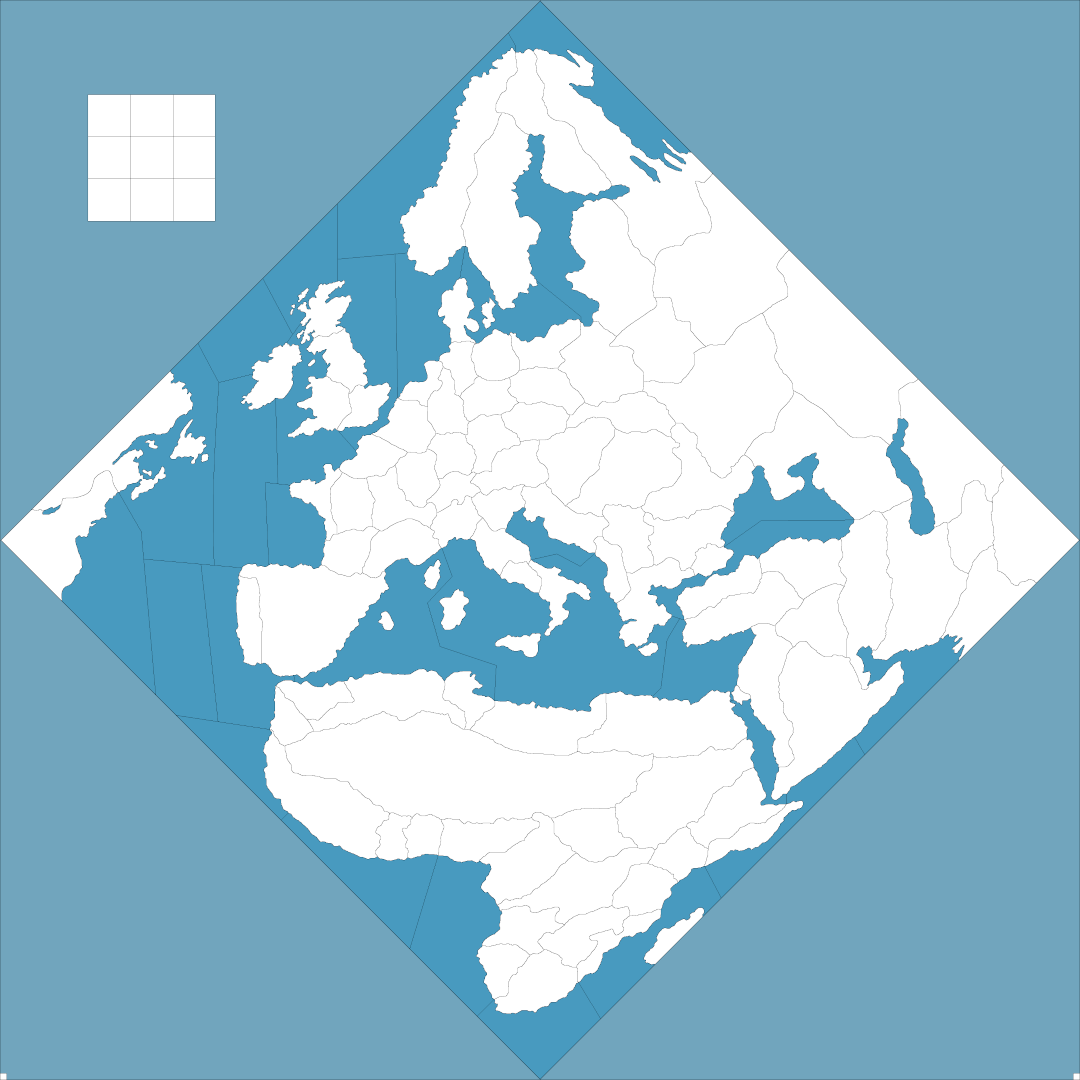
      Here’s the base I used to select out the diamond sections and make em a shade of blue.

      https://www.dropbox.com/scl/fi/b4aikygg08xyibgta0kgw/baseline_world_war_1_1914.png?rlkey=veg9jdummjjik749x6rzd6qtq&dl=0

      baseline_world_war_1_1914_reduced_preview.png

      Anyhow, I was doing it for a couple maps, figured one for 1914 might be cool.

      Nice work dude! Catch ya next round

      Elk

      posted in TripleA Support
      Black_ElkB
      Black_Elk
    • RE: New TripleA Map UHD World War II Global

      Looks good! I was able to grab it in 2.6 with the image too, which was nice! This will be way more convenient for me.

      I think what’s in there looks pretty solid, this way I can just send you the relief image at 100% opacity for safekeeping (that would be the one that the end user can tweak if making adjustments to the base) or whatever random other stuff. I may make a rail pattern for it following Bung’s convention if I get the motivation/time, or any other unit graphics type stuff. But we can put that together later somewhere down the line.

      To recreate a new relief from the baseline map I tried to keep it pretty much to the steps in the guide. Basically you’d expand the base (black line) by however many desired pixels say 3-5px lines fill with 100% black and then apply some blur to that selection to soften the boundary area. To create the color pop you do the same thing except instead of painting a fuzzy line on top, you remove that section of the relief undertopo (delete it from the layer that it’s 100% transparent on the relief, no topography) little blur the same way. This will create an opening where the HEX color shows through at 100%. That is the visual effect going on anyway. When you take those 3 layers and collapse them together you can use a color or opacity tweak to the whole image to create different presentations. ’

      Default is high vibrancy just to try and set a ceiling there, meaning I wouldn’t go too much brighter than that on color saturation (cause much more would hurt my eyes after viewing for longer than say an hour) instead I’d go down from there and just control like the HUE or Value (brightness/darkness) of the color on the map instead of cranking the saturation any higher. This is so you can kinda control the unit tints too if ever you need to, because you can just match the Saturation and slide the swatches for hue when you go to use GIMP for retints. Map blends would have the unit tints doing something similar say passing through 50% white to knock them and make more muted. When choosing HEX colors for map blends just add 50% white to the swatch, and you can rematch the colors that way. Controlling ocean color can be done via the Baseline. So least a little bit more modular that way. Main thing goal was just to get something a little larger for larger displays and to get the lines holding together at those further zoom outs which should work now. I’ve been playing it at 1440 and 1600p just to see how it holds up and I can go down to the 20% zoom out which is nice. For font scaling it’s a little rougher cause the tripleA UI looks better at 1080p but I tried it without font upscaling in windows still looked pretty decent.

      In April it’ll be 12 years since this one which still holds up for general purpose play, I just thought it’d be cool to try for something a little larger at 54px since displays are scaling going up. But you can make it look pretty much the same I think, with a little mix and match.

      159671_TripleA_world_war_2_global_1940_alpha_smallest.png

      Anyhow, tapping out for a few! Shogun is back on hehe

      Catch ya next round and have fun!

      ps. In order to make your poly assignments consistent, I would suggest that if you make Bermuda British, then you should do this as well for the other Caribbean possessions. Jamaica, Bahamas, and the British Virgin Islands down to Trinidad. Br. Honduras is of course not shown as a separate tile (I removed it when collapsing the GCD TTs, you can still see the shape there hooking up into the Yucatan), but for the stuff that is there, I’d just try to do them all the same way. Otherwise the question immediately arises, ‘why here, but not there?’ hehe. When it was all folded under USA aegis the 1940-41 abstraction glosses over this, but to keep stuff in line with the other areas of the gameboard now, that’s what I’d suggest. Like probably just attaching that stuff to the nearest actual game-tile, say Br. Guiana or whatever, just with no actual connections.

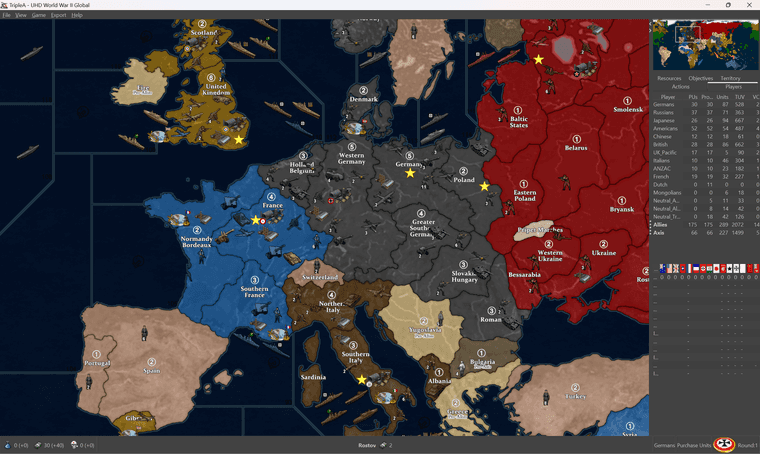
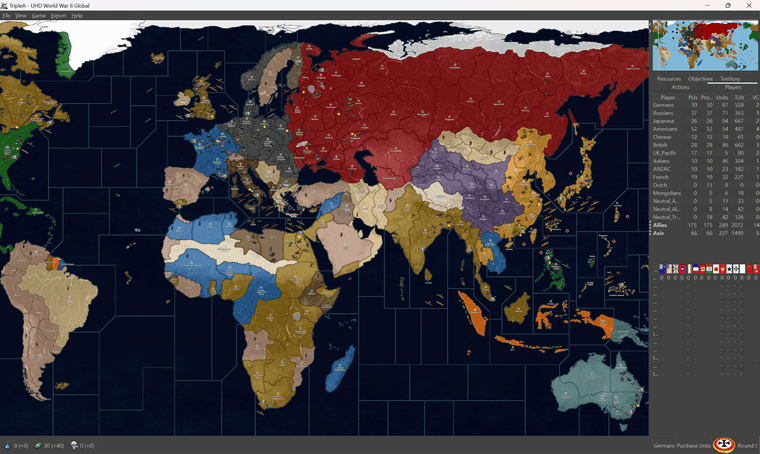
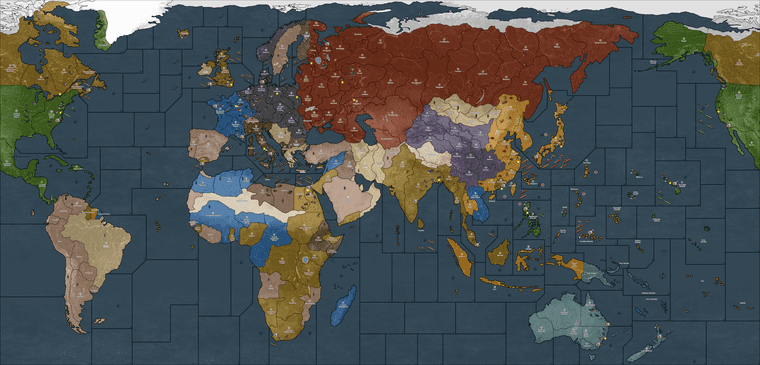
      Here is the current presentation that I grabbed from the mapdownloads…

      quickie.png

      Comparing that with what is shown here in red… (1939), you can see which polys should get the cosmetic adjustments for the HEX paintjob on that part of the board…

      https://en.m.wikipedia.org/wiki/File:British_Empire_and_Commonwealth_1939.xcf

      posted in TripleA Support
      Black_ElkB
      Black_Elk
    • RE: New TripleA Map UHD World War II Global

      @barnee sounds good! We can always revisit that stuff for the finer toothed comb, once we’re on the same page again. I have so many random maps on my hard drive or that dropbox that it’s tricky to keep em sorted hehe. For extraneous materials those could probably get moved to a separate WIP type folder that just houses the elements. So basically we could have a little grab bag on it, called Global Customizer or something along those lines.

      Good stuff to include there might be Unit flips, the baselline blues, and the relief at 100% opacity and the topo in color, then maybe some alternative HEX color options that key off things like map blends, or just a simplified design that’s easier for stuff like mods. If the end user wants to go under the hood and break out the paint they can cruise around in the Customizer version of the map and have more toys to play with. For the more standard package could probably reduce the filesize a fair bit that way. I’ll think of how to organize it, then maybe just put some quick steps in the notes. Ideally it would function the way veq approached the pact of steel2 folder, except that it would be more oriented on map display stuff (with options laid out on that) rather than the gameplay/xml type stuff. Or it could work that way for gameplay stuff too I suppose, just that I don’t know how to do any of that. Making the map more modular would be a good for an endgame goal on this for me, cause tripleA just doesn’t have anything quite like that really.

      For example the same materials could be used for other standard projections, or border divisions. In principle you could have several ww2 themed games, with options to make the relief stuff look different from the same sorts of elements. Short of having color change or the mapskin stuff it-built in to tripleA from a dropdown tab as like a quick palette or hotkey, this still seems workable. Or at least having a customizer folder would give peeps a place to start with it. I regard tripleA as more of a map tool or gameplay aid, but also it’s basically a kit bashing box like with some riffs to cover some different bases. I tend to just really enjoy something that recalls 99 and Iron Blitz in the nostalgia vibe apparently lol. Probably with too much pop for some tastes, but then if the end user can adjust it’s pretty cool hehe. Like if we got some ways to let people go different directions with it that’d be cool, especially for stuff like colorblindness too, or ways to adjust contrast, which is sorta what map blends would do. Anyhow, all that stuff I’d think could be in a map makers WIP type folder, and then the standard thing could be a bit more streamlined, and easier to parse maybe.

      Off to watch some Shogun, but let me know if ya hit any snags.

      Catch ya next round!

      posted in TripleA Support
      Black_ElkB
      Black_Elk
    • RE: New TripleA Map UHD World War II Global

      @barnee Right on!

      The upside of having the HEX colors for the national paint jobs showing through one shade darker (like they do in the opacity99 version I threw together) is that it made the Map blends feature works slightly better that way. In the regular display the lines hold all the way down to mapview 18% for me, with map blends turned on it’s closer to 30% and the lines have just a tiny bit of dance a little bit zooming out further, but nothing too major. The lines don’t break or disappear for example as sometimes would happen on Bungs. I never use map blends really, but I figured it made sense to try and find a fade that worked ok for both. If using the regular view or the map blends view players can of course, also reassign their HEX colors to be darker via Map Props as an end-user. The limiting factors for customized aesthetic would be the unit tints and the ocean color right now, but otherwise it should be pretty adaptive, and if someone really wants to go under the hood and change the colors, we can always create a simplified relief for color mixing and stick it in the backup folder somewhere on the repro. We used to have a simpler method for map skins, but it still basically works, provided the end-user knows how to use the tilebreaker utility. Otherwise the most important thing for me was just that the border lines would hold (not break or disappear) when zooming in/out in the Mapview, at least for the normal play range at like 50-80% mapview, cause the rest would be like personal preference and modular via map.props.

      For the assignment of cosmetic tiles, you can approach this in whatever way makes sense. There are a few choices one could make there. For example in the Western Hemisphere, I had most stuff just coming under USA aegis, but one could assign the false tiles for say Jamaica or Falklands etc to nearby British tiles instead of USA tiles. Initially I had them not crossing SZ boundaries, but it doesn’t really matter, provided the tile is not labelled this should indicate that it is cosmetic, and if you cursor over that sort of tile the territory tab will show what’s going on there. Just be mindful if reassigning the Polys on the tiny extra islands, that you’re not introducing actual connections to the false tiles. Also if you switch an assignment, say you want Jamaica or Falklands to paint over from a nearby Brit tile instead of USA, you may need to go back and re-polgrab a few other things, so they continue to paint in properly. Otherwise they’ll show white/unassigned, like what happened for you with N. Sakhalin earlier. If doing it that way you could also assign a TT like the Yemen/Kuwait one to say Transjordan instead of East Persia, since I only did it that way to avoid having to cross a sz boundary too. I would just use your Bermuda shorthand on it, and treat them all the same way you treated that one for consistency. The USA aegis is a little weird, cause the game starts in 1940, but by 1941 some stuff makes more sense, stuff like this https://en.m.wikipedia.org/wiki/Bermuda_Base_Command but you’re going to have some inconsistencies just coming from the abstract timeline. Also just to note that I assigned Sierra Leone to Britain as a starting TT rather than a true neutral TT. I don’t know if that one ever made it into the errata. You might have to make a shotcall there, as I still haven’t seen the latest g40 reprint. Should be mostly just noodling.

      I’ll update your relief with the canals just to give you that hint of blue back. Give me a couple minutes I’ll just update the dropbox link. Let me know if it hums hehe

      and have fun!

      posted in TripleA Support
      Black_ElkB
      Black_Elk
    • RE: New TripleA Map UHD World War II Global

      OK dude here ya go. This relief just has your preferred blue drawn directly into the relief again. It should work with the new divisions in the WIP. If you use the HEXs from before, should be pretty close to identical.

      Here is the relief to put through the tilebreaker…

      https://www.dropbox.com/scl/fi/dqn2colbi23vxq9ond2q1/relief_uhd_global_1940_3-1-24_new.png?rlkey=5xr07f1jdj04ocsx3vpa4nv75&dl=0

      Here’s an opacity mod on it I think may be closer. Hopefully we can just figure out a way to adjust it or via HEX to get to the same kinda read.

      https://www.dropbox.com/scl/fi/7002d162ciqpzvovqkpwi/relief_uhd_global_1940_3-1-24_new_opacity99.png?rlkey=43pe710ba58el2t4jgvjy1dzb&dl=0

      Here is the base to use with it… it’s just the older ocean color, but with the new lines.

      https://www.dropbox.com/scl/fi/vyba3xnfwt9j8afnj1urs/baseline_uhd_global_1940_new_3-1-24_ultra_new.png?rlkey=oujicuugecauskaqyqsaai0ie&dl=0

      Run those both through the breaker (with the old HEX colors in the map.props) and you should get something that looks like this… The high vibrancy version. Here’s a preview of what I am seeing and then reduced to 25% to display here on the boards. It just needs your reassigned polys and place to match, the preview shows the areas that got the adjustment, fairly minor tweaks, but hopefully a little easier on the quick glance.

      global quick view reduced.png

      I tried to spec it the way you wanted (I think I understand what you were after now, not the sharpness/blur of the tile interiors, but simply the color of the borderline around the sz divisions.)

      The reason it looked the way it did before was a 1px gap in the sz boundaries, which allowed the color of the base to show through completely. If the ocean was darker that line would go darker, and so the visual impression was an increased thickness of the line.

      The issue with the ocean is that it’s not a single blue, cause I added those clouds effects. Instead of a single blue we have a couple dozen blues scattered across all those pixels that all come together to form a more impressionistic blue. Basically it’s just a value change on the colors that make of the cloudiness happen. The problem is that if I take that stuff from 100% opacity to anything else (in order for the end user to control the blue by having it show through from the base) this will change the color on the sz borderline and give it a glow. Either that or it will just change the overall impression of the color once it’s passing through the cloudy visual effect. I had a hell of a time trying to recreate this, because it was achieved just randomly off the cuff for the one you liked most hehe.

      If one wanted to change the national HEX colors, the overall visual impression of the map will key off the choice of blue, because it’s the dominant color on the map and on the screen. It’s the key choice for the overall vibe of the map. To change that as an end-user would have to isolate that portion of the relief and color change there directly. I think it would be ideal to handle this via the baseline because it’s easier to manipulate for the end user, but then the user is likely to get a slightly different border glow or perhaps a slightly thicker line on the sz boundaries doing it that way. Just cause of how the blur applies when that portion of the map is transparent instead of fully opaque. In short, the lines appear thinner here because the blue on that 1px gap around the sz boundaries is a lighter/more muted blue. The other stuff, I just got confused what you meant by sharpness, I thought you meant sharp like the opposite of blur. But you just meant the sz lines right?

      Anyhow, let me know if that make sense. I think if making adjustments to the baseline for the TT shapes instead of me just hacking the old relief like I had been doing, we’ll build it out again from the elements. The relief I think would come in right around 50 mb. You can just keep it in the WIP till I can figure out what’s what on that last step that to get the color to match, and roll with the earlier iteration till then. I’ll try to get it sorted when I got a weekend free. Catch ya next out

      posted in TripleA Support
      Black_ElkB
      Black_Elk
    • RE: New TripleA Map UHD World War II Global

      Yeah something is going wonky there. I’ll need to dig under the hood and see which step I missed. Probably was off by a pixel with expanding the selection, or it went rogue when applying the blur across the transparency layer. The undertopo needs sharpening or brightening or an opacity tweak too. I had made some notes on it before, but I must have made some sort of last minute adjustment on the older one that I need to reverse engineer now. Probably better to kick the can on it for a few till I can get it figured. If you got the polys already handled, just hang onto it as a WIP. We can table it for now and sort it things out once I figure out to replicate that border fade using the different method.

      posted in TripleA Support
      Black_ElkB
      Black_Elk
    • RE: New TripleA Map UHD World War II Global

      @barnee

      Here’s a quick example of how to do it. I made some silly names just to get the ball rolling. Basically you run the tilebreaker in map creator tools, then navigate to the downloaded maps folder to get at different color ocean blue. We could do a range, I sent you a few at scale just to get it in the ballpark. That one I did before was probably just one swatch off or something, cause I was eyeballin’ it. We can give em another pass once the poly’s all sorted.

      Just to show how it’d work though, these example baselines would give the following displays in-game…

      baseline_uhd_global_1940_new_3-1-24_parchment.png

      parchment.png

      baseline_uhd_global_1940_new_3-1-24_harbour.png

      harbour.png

      baseline_uhd_global_1940_new_3-1-24_midnight.png

      midnight.png

      baseline_uhd_global_1940_new_3-1-24_cobalt.png

      cobalt.png

      ultra.png

      global quick screen base blue ultra reduced.png

      baseline_uhd_global_1940_new_3-1-24_frosty.png

      frosty.png

      We can do the pick 6 on whatever, just gives peeps a guidepost. Then the default whatever you like best, and we can just tune it that way. Anyone can go to town in the map props for the land colors, or like for blends. Easy to make a new base cause the filesize is low and it’s only a single color adjustment. Let me know if that seems good. Catch ya next out

      ps. oh and one last, this is a relief that can be used to create a more simple style or to fill with patterns. In this one I combined the harbour blue base with the topo underlayer eliminated and replaced with just a simple blur and like 35% opacity off a neutral gray. You can see how it can be used this way for a different vibe, like a callback to the more oldschool triplea, just for something easy to work with. The filesize on that one is about 30 mb, not sure if you want to toss it in the mix too. Just depends how large you want the folder to be.

      https://www.dropbox.com/scl/fi/k7leffuylzelem9zkcmde/relief_uhd_global_1940_3-1-24_sunday.png?rlkey=4ng24cihcdw3b5lfw9rldgutp&dl=0

      sunday.png

      posted in TripleA Support
      Black_ElkB
      Black_Elk
    • RE: New TripleA Map UHD World War II Global

      @barnee

      To fix your Korea issue, Amur needs the connection to the false TT N. Sakhalin (that’s a cosmetic tile, but the poly is attached to Amur) so needs an assignment after a change is made to the Amur TT.

      To fix the blue this is handled entirely via the baseline now. Here’s a high saturation version closer to what you had before, I just cranked the blue in the base and ran it back through the tilebreaker.

      https://www.dropbox.com/scl/fi/zafutctyjfxiorf97klcq/baseline_uhd_global_1940_new_3-1-24_ultramarine.png?rlkey=8ymrygzt460ks8wv6al163o5n&dl=0

      You can make it lighter or darker that way too, or adjust the hue. The cloud pattern is just replicated from the one you liked from earlier. I made it using a GIMP plugin for cloud effects, but then forgot to grab that again when I set up the new rig, so this was just more expedient.

      Anyhow try that and see if you dig, if not adjust the sliders in GIMP or whatever program for to adjust that ocean portion of the baseline image. Should give you what you’re after.

      Oh and you may wish to include these graphics somewhere in the folder, as they usually need to get dropped in last, after doing any opacity adjustments to the relief.

      canal.png lighthouse.png

      Hope that helps

      I also forgot it was leap year, so tell’s you where my heads at. But shoot me a message, I’m sure we can get it sorted.

      Elk

      ps. here’s a quick view after making that adjustment to the blue in the baseline. So you can see it comes through more vibrant in-game (also on the mini map), cause the baseline is more vibrant. But we use the base to control that. Baseline image clocks in at like 800kb, compared to the relief with is like 40mb now. It was heftier before. With the space saved I figured we can just have a dozen baselines with a range of blues. All the player needs to learn how to do is navigate from the map utility to their downloaded maps folder, and run the tilebreaker to get the new base tiles. Not as easy as changing the national colors via the Map.props HEX codes, but after that it’s the simplest way I could think of to do this, and make it as modular as possible.

      You can also use map blends if desired, this may recommend a darker baseline blue and darker Hex codes for each nation just to offset that blend (which adds like 50% white on the land, and 50% whatever the blue from the base) and blends those colors. The border line will also blend. But it should work the same way in each case. If you want to adjust colors the HEXs for land, the baseline blue for the SZ. Retinting units is the hardest, requires a batch save or doing each one manually (takes forever) but least this way the two biggest things (land color and ocean color) are customizable like that. If that makes sense.

      global quick screen base blue ultra reduced.png

      Storms rollin’ in, will probably have to catch ya on the next one. But hopefully that makes it closer to the grade for now heheh

      posted in TripleA Support
      Black_ElkB
      Black_Elk
    • RE: New TripleA Map UHD World War II Global

      @barnee

      Ok dude I made you a quickie relief… Try this one

      https://www.dropbox.com/scl/fi/fmxl19irz58areocrvwyx/relief_uhd_global_1940_3-1-24_ultra.png?rlkey=5yy848z4ybpc8mn4nbkt6u42z&dl=0

      The opacity layer is also desaturated, which shaved off about a 5th of the filesize. This should allow you to control the hue of the ocean just via the baseline image. Basically changing the color blue in the base = changing the color of the ocean that displays in-game. Here’s an example baseline to use with it.

      https://www.dropbox.com/scl/fi/bdk6o6bep2fut4xpkpf3s/baseline_uhd_global_1940_new_3-1-24.png?rlkey=237ffggahydecl6whzz6887c2&dl=0

      Remember that the choice of blue for the ocean will change the impression of all the land HEX colors, ie the colors appear slightly different based on what others colors are showing next door. Since blue is the dominant color it will have the more dramatic effect when changed. The lakes have to be added separately if you want them to totally match hues when changing the ocean color around, but otherwise should be able to go lighter or darker blue that way and it made the filesize slightly more compact.

      Then all you gotta do is grab the polys for em with the polygrabber for the following TT connects. If you run the new base/relief through the tilebreaker first you’ll see the effected tiles.

      Syria/Transjordan

      Amur/Manchuria

      Kazakhstan/Novos

      Finland/Vybord/Novgorad

      France/Southern France/Switz

      (Oh and the label for sz 112 if you didn’t add that one already)

      The color match wasn’t totally perfect, but it should work well enough for now, just to get us back on the same page again. The end user can also adjust the relief itself, by tweaking the opacity or brightness/contrast of the relief before running it through the breaker. The more opaque the more chalky/pastel, the less opaque the more it will look like the HEX color fills. This one has the midrange palette. I’ll give the borderline another pass when I get the chance, but I think should be good enough for government work lol

      Everything else you should be able to control via the HEX color codes in the map properties for each nation. Here are the Hex colors I used for the map.props below. You can change them to whatever, but this is what I’ve been running.

      https://www.dropbox.com/scl/fi/9q4ltndbbc65ie52768kp/map.properties?rlkey=96syjtmvl7ttghk2bre4k2atk&dl=0

      color.Neutral=d8ba7c
      color.Neutral_True=b88a6c
      color.Neutral_Axis=6A5B3D
      color.Neutral_Allies=d8ba7c
      color.Italians=58360E
      color.British=8E6600
      color.UK_Europe=8E6600
      color.UK_Pacific=8E6600
      color.French=10569C
      color.Impassable=e7d5b0
      color.Americans=326100
      color.Russians=831E00
      color.Germans=3f3f3f
      color.Japanese=e19521
      color.Chinese=533c69
      color.Canada=bf0010
      color.ANZAC=4d7f7f
      color.Dutch=CF7E00
      color.Mongolians=d8ba7c

      This is how the image displays for me when I use the export feature to save a picture of the gameboard…

      https://www.dropbox.com/scl/fi/kio868126z3pk4jqnehv8/global-quick-screen.png?rlkey=4e2kpd9jib24zamoc3v0455xx&dl=0

      global quick screen reduced.png

      Hopefully that helps. Let me know if you got it working. We can iron out the other color stuff later. The relief for your other modded board would be the same, you just need to replace the top section of the relief with all the boxes and whatnot. Catch ya next round

      posted in TripleA Support
      Black_ElkB
      Black_Elk
    • RE: New TripleA Map UHD World War II Global

      Ps. here are a couple quick elements. So basically this top one is what we got going on in the current map UHD. It’s not really Ultra High def in any meaningful way, but that was sorta just the idea I had, that it needs to be larger than the gaming display so the player has something to zoom-out from. This mainly cause when tripleA started out 1080p would have been like the extreme upper limit back then, whereas now that scale is pretty standard. The ceiling on it is actually the unit sizes which are basically all keyed around the 48px square still. The largest we can make a unit right in tripleA is basically 54px tall, and then upscaled to 125%. So the map could go larger, but then the units end up super tiny. This one is kinda just working with what we got I guess. It’s not part of making the relief, just the limit on how big the map can realistically be made for an upscale, before it just runs away from the UI and the unit graphics out of range.

      Anyway these are the jank parts, which I’d like to clean up, but then I figured might as well just toss em out here in case it’s easier…

      In this image the relief topo pattern is already isolated and desaturated. It’s at 100% opacity though. To make adjustments basically you’d redraw the stuff on that one, and then reduce the opacity afterwards. Then the painted over tiles will show through with the HEX colors chosen. By the time it’s passed through that and had the border feathering added and a little gaussian blur, what’s underneath becomes more impressionistic. The features recede into the background and we get a little play for the obvious liberties to distort that topo to match the baseline warp. The 100% transparent sections here will display whatever the background color you got going. Like for me on these these forums it shows white on desktop, dark on my phone. This would be like what comes through from the ocean blue in the baseline, or the pure Hex colors in-game for the stuff on land.

      11110_topo_mask_land_reduced.png
      https://www.dropbox.com/scl/fi/tf4lpucudt7gcfyxy3in2/11110_topo_mask_land.png?rlkey=ho6tg0qpprox7rl9bak3luoyz&dl=0

      Then here’s the same thing, but in color with a quickie blue for the ocean. Immediately all the jank will jump out there, because now peeps can kinda see everything going on, especially the little alignment issues like say where coastal areas are or larger lakes and rivers pop. The blues there were just to make those areas easier to spot. Once it’s desaturated and layered in we can clone stamp around, move a topo feature, HEX colours on top or whatever and it all will kinda just blend together a bit easier. It works for trying to do the thing like in the current display, but not as well standing all by itself.

      11110_topo_land_jank_reduced.png
      https://www.dropbox.com/scl/fi/3ssv75gppcpsbkusbitw4/11110_topo_land_jank.png?rlkey=jo2ms7wc6q4twrh80bp6isgu8&dl=0

      Anyway, those are the sorta the main things to draw over or tweak if one wanted to go in and noodle around to alter the relief. Then the opacity is reduced afterwards, when the layers all get collapsed together into a single image. The border stuff just comes from the baseline image, with the feathers, blend and blur, or variations in opacity between the layers.

      For the ocean waves and all that, it’s basically the same deal as the land portions, except we use a cloud pattern to kind gloss over whatever is happening in the water and knock back the jank there using those sorts of cloudy/wavy type patterns. For the last one I just threw something together and dropped it on top to clean things up, but didn’t save out the element, so I have to just redo it I guess once the base is fully sorted.

      For the stencil type thing here is another version of the baseline which won’t work in tripleA but might be easier to use for the masking. It’s just the base image with the black 1 px line turned red. Basically when everything is done you paste that layer on top and then use the red selection to delete the actual borderline from the final relief, this will allow the black border line from the base to invert to white, when the territory is highlighted in-game.

      That line, the border line can never be anti-aliased. It has to be 1 px wide and 100% black in the baseline map at scale, or tripleA won’t know what to do with the image and all the utilities will bust. Or the map won’t scale properly when changing mapsviews, and all the rest. That’s why tripleA is sorta tough to work around, cause it needs that base map image to be a certain way, which is a limiting factor.

      I do this step after the black border is already expanded/feathered or had some blur tossed around the edges to make it appear softer in the relief. Trying to manually antialias it in whatever way through opacity and gaussian blur or whatever. The whole thing works better at some map view scales than others, super zoom shows some hot fuzz, but I was aiming for like 50-80% on the players view, where it presented alright to my eyes. Kinda tough cause everything is all rastery hehe. Anyhow just in case someone wants to play around with the pieces to go under the hood.

      baseline_uhd_global_1940_stencil_red_reduced.png
      https://www.dropbox.com/scl/fi/oem6fwot72m8ifvz3yaxs/baseline_uhd_global_1940_stencil_red.png?rlkey=52cj7ytvpwj67j98sbv8qxd1j&dl=0

      The previews there are all downscaled to like 25% just so the image could display here.

      Right then, just thought might be cool to show ya how it looks when putting stuff together. The final relief for a tripleA map I usually will just get the version where all the working layers are already collapsed, which is why they’re harder to modify from the materials in downloaded maps folder. Usually I have to reassemble the tiles to using the breaker utility in reverse to get an image that can be tinkered with for the relief. I wanted to just put something in the folder itself, not for the game to use, but for the end user to use, if that makes sense. But also I need to keep the overall filesize sensible, just to save room for all the extra units and such, and the images which the game actually uses (the stuff in the tiles folders etc) which is already pretty hefty.

      Here’s how the polygrabber works. It’s the main thing you need to just tweak the base, which can be run without any relief pretty easily just to test stuff. Like to change the borders shapes of the tiles or the overall world warps you do this sort of stuff… There’s another thread where I tried to explain the relief stuff, but it’s complicated. Needs a tutorial video or something probably, but I don’t excel at that stuff. It’s probably easier in PS, but I mainly just use GIMP.
      https://forums.triplea-game.org/topic/3432/a-brief-guide-to-the-map-creator-tools-utilities

      It’s technically possible to do this for any sort of aesthetic sensibility really. Any colors or map warp, or unit type looks. Like one could make the thing look more like the OG, battlemapish or the beamdog style or Iron Blitz or whatever, though I figure that ground is already staked out and I would just direct peeps to those places anyway. For me tripleA is sorta for customizers. Like it’s exactly the same thing in my mind as painting the sculpts or making your own cool map on a big piece of posterboard, but like the digital version of that. Main things that holds it back is that there aren’t really developers, and the whole design is sorta 20 years old using raster graphics, so the gamemap sorta has to key off the display size. Like however big you expect someone’s screen to be. As screens get larger and images get higher resolution, it’s harder to keep pace. Also needs to have that jank I think on some level, like a fan art riff, otherwise it’s stepping on toes probably.

      One thing I wish tripleA had a bit more of would the sorts of elements in the UI or overall user experience that I’d call haptics.

      Like making the dice feel unique, or doing the cool film reels or newspaper headlines. The RP aspect I guess. Oh and sound!

      There’s like no soundwork at all right now really, which in itself is a fairly jank aspect. like I tend to just play my big playlist of period music or classical jams, or film score stuff, Conan the Barbarian battle at the mounds on repeat or whatever. But of course can’t use that sort of stuff at all. If it has a time signature the filesize balloons and it’s bad practice to use anything not created from scratch there I feel. It’s sorta on the end user I think or if ever there was a sound guru for tripleA, but I don’t recall and have no clue how to do any of that stuff. Just sorta stick to the maps and little flags and the tiny dudes which I can get my head around lol. I just went with the vibe I was feelin, but ideally it would just be a custom riff of some sort.

      For the G40 I worked it backwards from the one I made for the Dog. He had an idea for a game which was like all kind of m3 on the ground and a bunch of other stuff that I only vaguely understood, for like unit interactions. Different vibe there, but I thought the map projection would basically work for this too, so just tried to bang out a G40 along the way. Idea would be anything not labelled isn’t a discrete tile, but just kinda cosmetic on the G40. Like unless it has a label that shows a name. Here sorta the same thing, but I just use the production value since everything had 1 pu, on the crazy big one where the tiny units sorta worked for the scale.

      This map image for the other one is like 90mb, but basically shows what I was shooting for initially. Like large enough for some sorta micro-sculpt maybe if it was actually a physical board, where the map itself is trying to maybe climb up to 1200p 1600p 2160p. Units can scale up but not enough for the super zoom, UI still looks kinda jank at that res though ,cause all the font and the tiny flag images displayed within the UI, upscale together. Again sorta hits the ceiling there. The map itself seemed to worked pretty well though, like just in the mapview scaling out. Here it is at 100% view 1600p just exporting the map image from tripleA to create a png. You can do similar stuff sans units if you just turn that off in the mapview before exporting the image to see how the whole map looks at once without needing to scroll around. They pretty much key off each other, but then I had to stretch a lot in central Eurasia where the OG gameboards come together. Just to hit the connects to be analogous to the G40 stuff. Anyhow here’s what that one ended up looking like…

      https://www.dropbox.com/scl/fi/rd96m1sbphowxsgwpdyb9/gcd.png?rlkey=zg05dcioht29puewdjesch11b&dl=0

      here’s the G40 keying off that, image at the same res 1600p, but with the option “show units” toggled off. You can see the map is a little smaller, which meant redrawing the baseline so that it would show the units at 100-125% larger and just much larger overall in relative terms compared to the tiles. The single map image when shown all together at once clocked in right around 50mb, so about half the filesize on the map stuff.
      https://www.dropbox.com/scl/fi/qvmqx7zygsi49rjd5oj5d/g40-units-off.png?rlkey=p6aphfdg4pgbwdw2zoa2jtxma&dl=0

      g40 units off reduced.png

      That image doesn’t have any of those latest base adjustment just included, but just to show the scale of the actual image compared to the display in-game at whatever resolution, but probably 1080-1200p just to smooth it out for the UI.

      posted in TripleA Support
      Black_ElkB
      Black_Elk
    • RE: New TripleA Map UHD World War II Global

      @gamerman01

      Ok so I had the triple threat going, knocked down under the weather, then knocked down by the weather (thanks xfinity lol) then a little BG3 detour, predictably, but I’m on the mend again now trying to get back on track.

      So I have the baseline more or less sorted, I blew out the pixels in the mentioned areas just so they’d be slightly easier to read. Might need more just wanted to get something down. Image is too large to attach at scale on these boards. But here’s a quick wip on the drobox and then reduced to 25% so it could be attached.
      https://www.dropbox.com/scl/fi/f8aq8x0dijka0sreeow66/baseline_uhd_global_1940_new_2-25-24_wip.png?rlkey=34y2lp8ws0kuwz5rsxtx9a0ae&dl=0

      baseline_uhd_global_1940_new_2-25-24_wip_reduced.png

      Just to give a quick primer on what I’m doing, so hopefully it will be easier for other peeps to make adjustments if they want. The baseline image for whatever map will live in the downloaded maps folder. This one anyone can adjust just using a simple image editing tool like say MsPaint or GIMP or PS cause it’s only 3 colors. It’s also the easiest to run through the utilities (main is the tilebreaker, and then the polygon grabber) which tells tripleA what is a tile and where it’s boundaries are. The baseline image is the one used inside tripleA. I find it helpful to think of not so much as the map, but as a stencil.

      The baseline can be used like a stencil to mask or to make selections from another image (in this case a topo) to create the relief map image. That relief is the thing that ultimately gets displayed to the player in-game. It’s like the fancy part that has all the border feathering or cloud effects and whatnot. The current relief is sort of a hackjob, cause I created the topo from a different map, then pulled it into this one at a reduced scale so it would just crush my rig. The difference between UHD and 4K is like a gang of ram, and many minutes for each layer. Like it works for me, cause I vaguely remember what I did in terms of the masking, like what selections I grabbed and how I hotkeyed the borders and such to be at whatever width, but it’s not terribly useful right now for the end user. Instead what I need to do is create a topo that matches the base 1:1.

      That way anyone could just use the baseline and the topo to generate a new relief without having to do the extra steps, going back to the old relief and noodling the stuff, or replacing the pixels for whatever gets moved around or tweaked.

      For the current UHD stuff, it’s a bit jank and bit off and just sorta impressionist I guess, the under part I mean, but I’m trying to clean it up a bit. If I can do the ocean layer and the land topo layer separately that might also be helpful in case someone just wants to tweak one part. Like all this stuff they do by selecting stuff using the baseline. So isolating just the white part, or just the blue basically, or just the black (and then modifying only that selection on whatever under image for the relief.) I used basically a combo of fill/copy/paste, and expand selection, feather and whatnot to an entire selection all at once, which is way faster than the noodling, but only if I get it set up like that first.

      This is what I think would be cool…

      A map relief that has the political boundaries with the borders all colored over with paint, like in the current display. For that one the player should be able to adjust the HEX colors that are painting over tiles in the map.props pretty much at 1:1. Basically supped up Iron Blitz in the look, or whatever I can cobble together that gets kinda close to that.

      Then a map relief that has the political boundaries with the colors along the border lines. Basically looks more like the physical boards. Again for players to adjust the HEX colors to customize that but the colors are different. It’s just a different look and the colors read differently, basically you want them brighter relative to the topo (which right now is high saturation, cause I just desaturate it anyway so the colors show through) but on the map version that looks more like the physical board the overall read is pretty different. Not sure if it would even be interesting to most players, so I might just totally table that until I get this other one dialed, but ideally they’d just both be there so the player can choose.

      Finally the one thing that I can’t really change in map props which is the ocean color. For that what I’d like to do I guess is have maybe 3 baselines where the blue is the control color. 1 darker (revised style) 1 lighter (modern) 1 very light (classic). I think then all the player has to do is run the tilebreaker on whatever base they prefer and I can get that blue to carry into the relief from the base. The current map isn’t like that, not for the UHD anyway, for that the relief has the ocean blue sz tiles stuff painted over as the topmost thing basically. But I also lazed out and forgot to save the last one, so sorta trying to re-figure out what I did last time lol.

      Anyhow, ramble ramble, too many excuses. I’ll get on, I’m aiming for a Spring cleaning. Fingers crossed

      Catch ya next round

      posted in TripleA Support
      Black_ElkB
      Black_Elk
    • RE: New TripleA Map UHD World War II Global

      @gamerman01

      Sounds good! Piecemeal is cool - I made a quick list from the suggestions. Good lookin’ out. I think it makes sense too, especially if zooming out all the way. Display for mine caps out at 18%. I was mostly somewhere between 50% and 80% trying to kinda eyeball, but some of those skinners got kinda skinny there with the stretch. I also get some hot fuzz if I zoom in past like 120% or thereabouts, I can’t imagine ever needing to go that big unless someone had like giant flatty screen or a projector or something. I kinda wish I’d done the base at 16000px cause that would have been nice if unit upscaling past 125% ever got sorted, but I think would take forever at this point to draw that again at 1px, so probably just gotta keep rocking with this one. Hopefully I can run through the base and widen things up a little for those tight spots. It’s already pretty distorted anyway, so just kinda noodlin’ the last mile for an ok read at a glance seems sensible. Then maybe another pass on the units or something if I can rally. Or someone swoops the torch on that hehe. Catch ya next round dude!

      posted in TripleA Support
      Black_ElkB
      Black_Elk
    • RE: New TripleA Map UHD World War II Global

      @gamerman01 I wish I could rock a controller, cause I find it a little more relaxing for the exploration, but then I’m a Y Axis invert, and for some reason couldn’t get that to work properly. On PC I was able to pull it off by going into the Big Picture settings. I’m a diehard BG1 nut, so of course I have a million thoughts on Larian’s approach and many critiques. In the end I made peace with it though, just because I think it’s doing a lot of heavy lifting to get the youngblood back into this stuff. Like I’m an ancient dinosaur, but I knocked around on twitch for a few, and discovered to my amazement that there are like a million kids playing a Baldur’s Gate game right now, and then it sweeps all the awards and such, so for that they get my love.

      I hopped into the EA the second I learned about it, so they got like all my feedback there lol (you know I’m born rambler haha), but it was low key torture for some months just waiting on the new stuff to drop in Early Access. I think if I was going in blind right now, I might wait until they drop whatever Definitive Edition of the thing to iron out all the kinks, but yeah I had a grand old time. New fangled 5e not withstanding, it definitely scratched some kind of itch for me.

      Larian boards can be rough though, I think they must be getting DOS’d just constantly cause I get a lot of gateway timeouts over there. As an alternative https://tavernrpg.com/ is pretty cool for a hangout. I believe Julius and the gang set it up back when the beamdog boards went down that one time, so some BG1/2 players over there and a fair bit of A&A crossover fandom which was cool.

      I keep wishing A&A might somehow stage a similarly glorious comeback, but honestly I think we need to do way more work to appeal to women and girls before that happens. To me there’s nothing in the game itself or the WW2 theme that should make A&A a total boys club, even though we know toy soldiers have always been sorta marketed that way. The combat mechanics and such, these are all abstract and really fun to tease out, a definite A&A strong suit, so I think there’s no reason why it wouldn’t work. But when I compare the strides made in D&D, or stuff like Dragon Age to bring that demographic into the fold, then I look at A&A and of course we’re all greybeards lol. I swear, there’s gotta be a way, like even small steps, down to things like the game manual and the art. Who knows maybe it starts with the daughters and the dads! And Becca Scott and just kinda attending to that idea a little bit more, so we don’t get left in the lurch sans half the population. More stuff like this for a start, they had the right idea in 2019, but just keeping with that and trying to chip away at some of the barriers to entry on that front.

      beccascottAAO.jpg

      Oh right on! Have a blast! Catch you guys next round

      posted in TripleA Support
      Black_ElkB
      Black_Elk
    • RE: New TripleA Map UHD World War II Global

      @gamerman01

      yeah I’m trying to recall if I have a second set of bases units somewhere without any markers. Initially I thought it might be cool to have the naval ensigns for the naval bases and the air roundels or the ABs. But then I thought that might be a bit busy/confusing, and there are some inconsistencies there, cause G’s roundel is invented with the red added in, Japan’s follows a different convention coming off the little cardboard markers too stuff of that sort. I decided to switch the flag roundels inside the DoW menus to follow Frostion’s scheme, but for the ABs left those, since I figured they’d be sorta familiar and recall some of the other maps like the v3.

      The tricky part was that the way G40 in tripleA handles tech for bases is different than AA50, and there are damaged versions of each. For the ICs I think there are something like 30 graphics needed for each nation, which was kinda tedious so I ended up just going generic so it’d be easier for me to knock it out hehe. I tried to leave some space in case people want to remove/switch stuff around there, since the unit graphics is a little easier to tweak/substitute out, more than stuff drawn directly on the map relief. I think there might be a set in that one I did for the Dogs command decision map for alts. The handling of the UK pacific stuff is also a little weird, just cause of the way it’s coded, has some definite redundancy.

      I agree some of those borders are bit of a stretch, probably needs another pass to clean it up some once we crush the bugs and make sure the connections are all sorted. It would have been a lot easier I think if I’d just started with the G40 instead of trying to redraft a different map I was making for this purpose hehe.

      I wasn’t quite sure if the whole Kuwait/Trucial coast idea would actually work, as I was trying to find a way to make it look a little more accurate without upending too much stuff by just associating it with a neighboring territory. But then the way the tiles are labelled in tripleA G40 made that a little tough. I had already laid down the divisions there for the other map, so just kinda ported em over. I borrowed the idea from this video, where tiger mentioned it as a way to sneak in some missing TTs for the overall visual without necessarily needing to add new tiles. The thought being that by the end of the first turn it would likely come under the British aegis for the look.

      https://www.youtube.com/watch?v=7K-wX1CUsw8

      I thought the overall idea there was pretty novel, but not sure if I executed it in the most elegant way. For the other borders, probably would easiest just kinda blow it out a few more pixels for any of those spots that cut it a bit close. Mostly it was corrections to stretch a border that got tweaked when I was porting over the GCD stuff.

      Anyhow cool feedback! Maybe I can shake off this BG3 obsession for a few weekends to doctor it up some, if there are players now. It’s been flying under the radar for a while now. Like I totally just pawned it off on barnee there, cause I knew I’d got all lazy stomping around in Faerun till the end of time haha.

      Keep em coming! We’ll get it sorted one or another

      Best Elk

      posted in TripleA Support
      Black_ElkB
      Black_Elk
    • 1
    • 2
    • 3
    • 4
    • 5
    • 104
    • 105
    • 2 / 105